Adding music to a Yoto Make Your Own (MYO) card is a simple process once you understand the workflow. In short, you upload audio files, create a playlist in your Yoto account, then link that playlist to a blank MYO card.
This guide explains how to add music to a Yoto MYO card step by step, making it easy even if you’re doing it for the first time.
How Yoto Make Your Own Cards Work
A Yoto card contains a small NFC chip. When the card is inserted into a Yoto Player or Yoto Mini, the player reads the chip and loads the audio linked to that card.
The first time a card is played, the player normally downloads the audio to its internal memory. This allows the card to work offline later without Wi-Fi.
Keep in mind:
The player usually needs Wi-Fi the first time the card is played.
Once downloaded, most MYO content works without an internet connection.
Radio stations and podcasts require Wi-Fi because they stream from the cloud.
What You Need Before You Start
Before creating your MYO card, gather everything you need. Having these ready will make the process much smoother.
You will need:
A blank Yoto Make Your Own card
(You can also use the Welcome Card included with a Yoto Player or Yoto Mini.)The Yoto app
Music files you own in a supported format
(most commonly MP3 or AAC/M4A)A way to link the card:
Smartphone with NFC enabled, or
A Yoto Player connected to Wi-Fi
MYO playlist limits
Yoto cards have a few limits to keep in mind:
Up to 100 tracks per card
Each track up to 60 minutes or 100 MB
Total playlist limit 500 MB or 5 hours
Prepare Your Music Files First
Preparing your audio files properly prevents most issues when creating a MYO card.
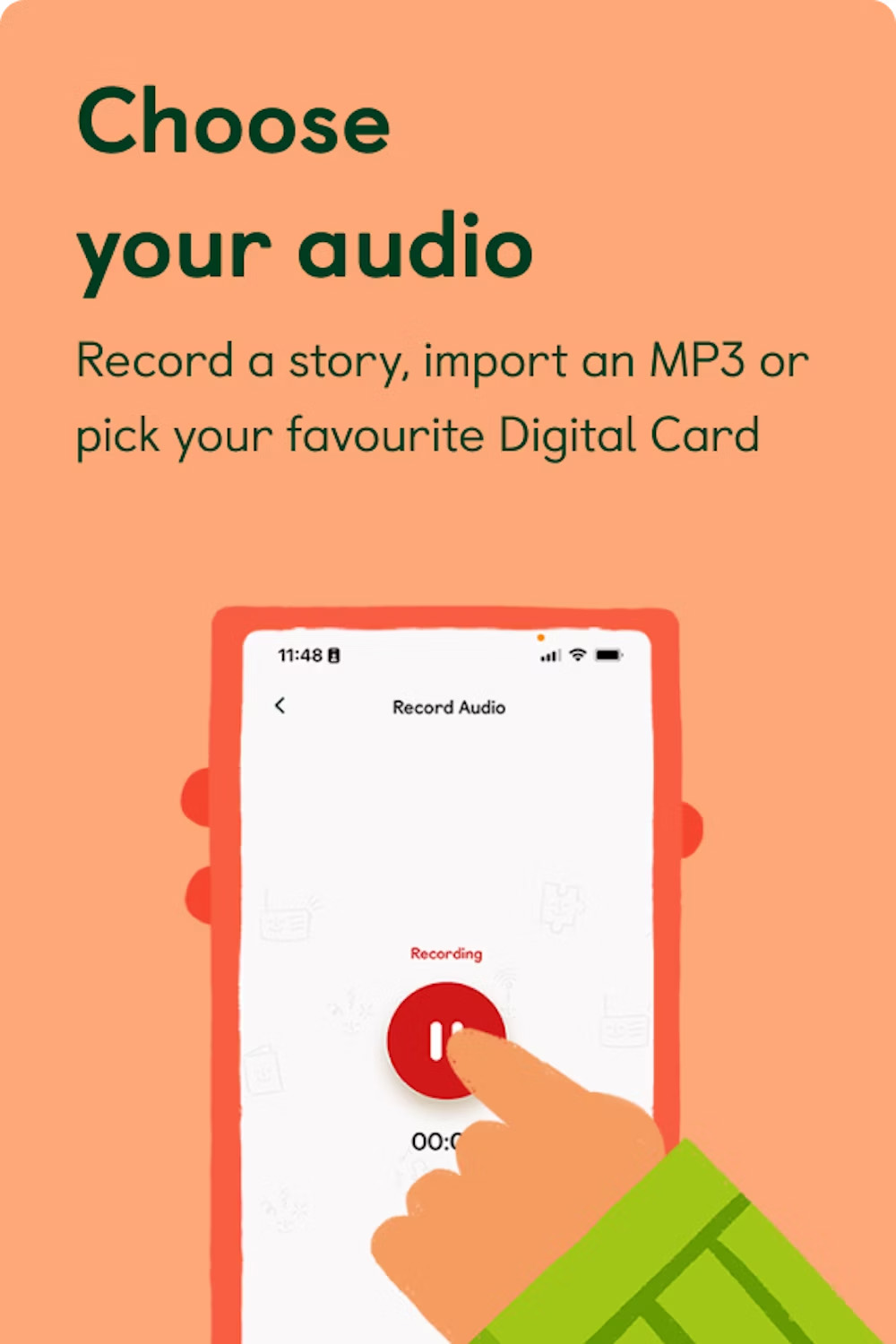
Use downloaded audio files
MYO cards work with files you upload, not streaming services.
For example:
Spotify playlists cannot be used directly
Apple Music downloads will not work
Files exported or owned as MP3 or AAC/M4A work best
If you purchased music from iTunes, the files are often AAC/M4A, which usually works with MYO cards.
If you don’t already have audio ready, you can also browse our free music tracks collection to download ready-to-use MP3 files for your cards.
Check file sizes and length
Each track must be:
Under 60 minutes
Smaller than 100 MB
If you have long recordings or audiobooks, consider splitting them into parts.
Organise your tracks
A simple trick that helps later:
01 - Bedtime Song.mp3
02 - Lullaby.mp3
03 - Storytime.mp3
This ensures the playlist appears in the correct order when uploaded.
Create a Make Your Own Playlist
The next step is to create your MYO playlist and upload the audio.
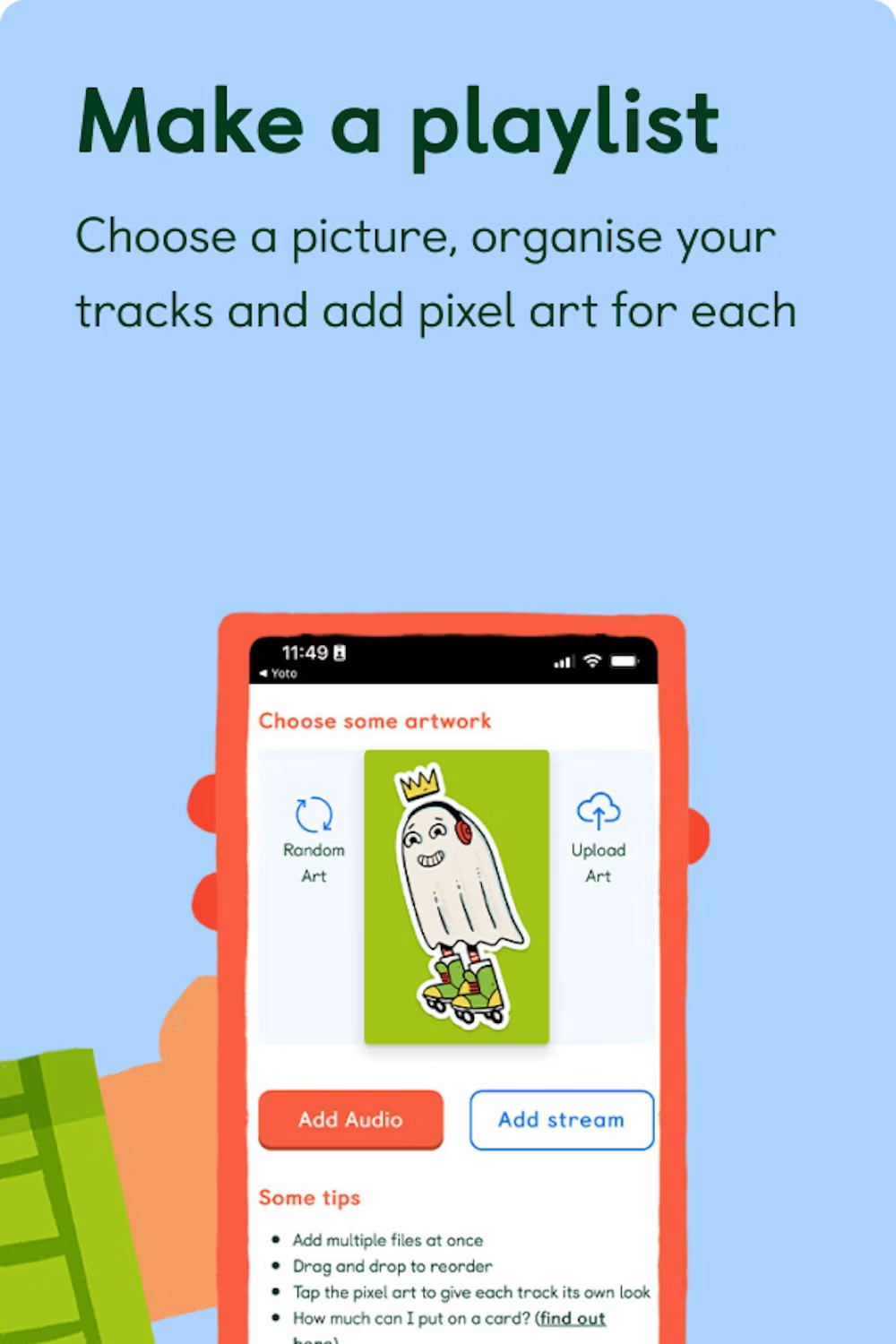
Where uploads happen
Uploads often take place in Yoto’s browser-based creator. You may be redirected there from the app.
Useful links:
Step-by-step
Open the Yoto app.
Go to your Library.
Find the Make Your Own section.
Choose Create a new MYO playlist.
Upload your audio files.
Save the playlist.
If using a phone, you can upload multiple tracks by selecting Upload Audio repeatedly before saving.
Add icons for tracks (optional)
Each track can display a small pixel icon on the player screen.
Benefits:
Helps children recognise tracks visually
Makes navigation easier
You can:
Choose built-in icons
Upload your own icons
You can also browse our collection of free Yoto icons to download and use with your cards.
Recommended icon format:
16 × 16 px PNG
Transparent background
Link the Playlist to Your MYO Card
Once the playlist is ready, the final step is linking it to the card.
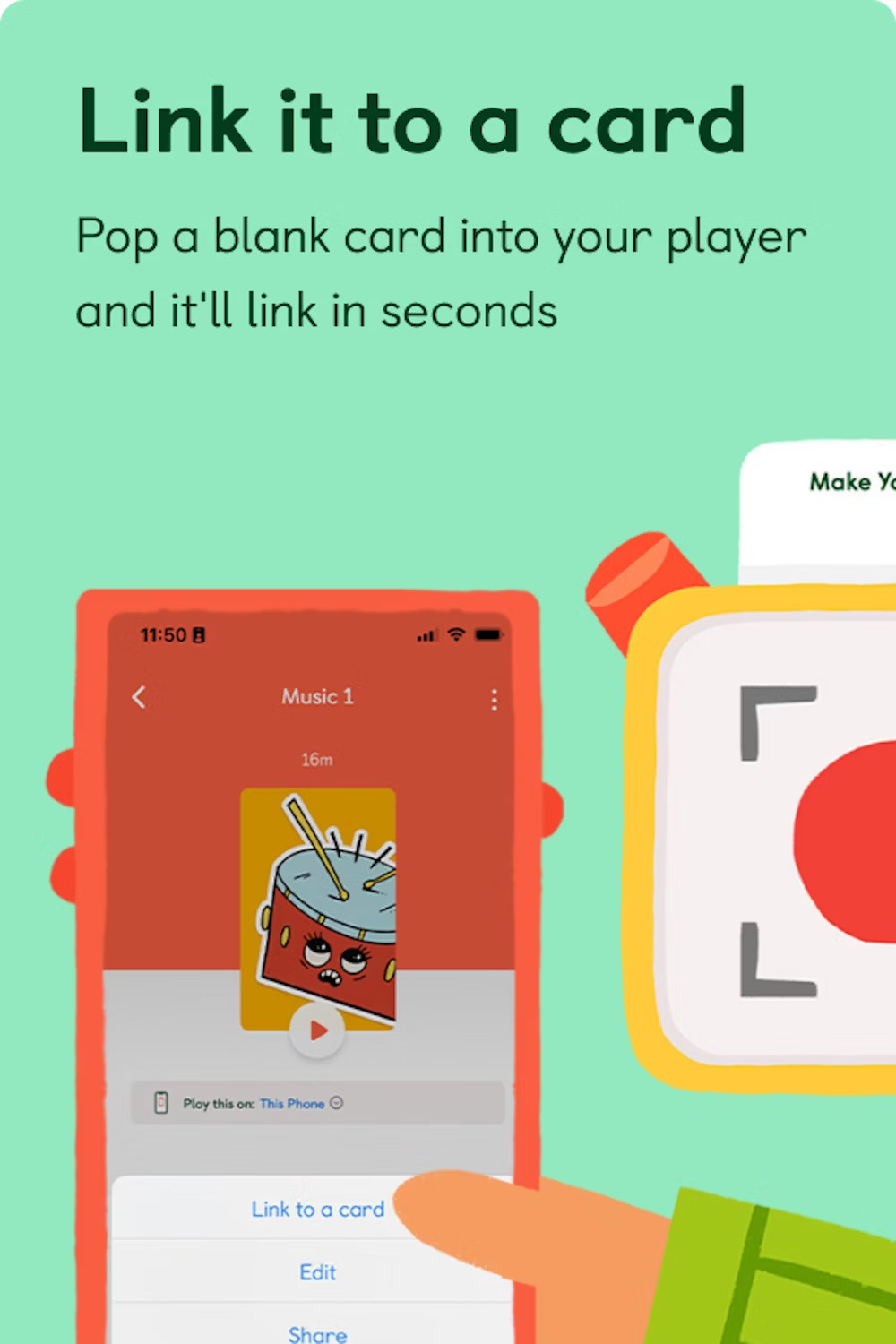
Open the playlist in the Yoto app and select Link to a MYO Card.
You can link using either your phone or your Yoto player.
Link Using Your Phone
Open the playlist in the Yoto app.
Tap Link to MYO Card.
Select Use your phone.
Hold the MYO card near your phone’s NFC reader.
Wait for confirmation that the card is linked.
Insert the card into your Yoto Player or Mini to play.
Link Using Your Yoto Player
Choose Link using a Yoto Player in the app.
Ensure the player is powered on and connected to Wi-Fi.
Insert the MYO card into the player.
Follow the prompts in the app.
When linking succeeds you will normally see:
A red record icon
Followed by a green tick
Remove the card and insert it again to begin playback.
Troubleshooting Common Problems
The card links but nothing plays
The player may still be downloading the content.
Look for:
A cloud icon on the display
Slow first playback
Give it a moment to finish downloading.
Will MYO cards work without Wi-Fi?
Yes, once the content has been downloaded to the player’s memory.
However, radio stations and podcasts always require Wi-Fi.
My audio files won’t upload
Check that your files are:
MP3 or AAC/M4A
Under 60 minutes
Under 100 MB
Also ensure the total playlist stays below 500 MB or 5 hours.
I updated the playlist but the card still plays the old version
MYO cards are reusable. When you link new content, it replaces the old content.
After updating:
Leave the player online and charging
Allow time for the player to sync the updated playlist
The player isn’t reading the card
Try these quick fixes:
Restart the player
Remove and reinsert the card fully
Test another card
Check the player is connected to Wi-Fi
You can also test the card by tapping it to your phone with NFC enabled.